There’s nothing more stressful for a computer user than discovering that a hard drive has failed. One moment, your files, photos, or work documents are right where you left them; the next, they seem to have vanished into thin air. Hard drive failures are surprisingly common, and they don’t always give you a warning.
While modern storage devices are more reliable than ever, accidents, hardware malfunctions, or software corruption can still strike at any time. The good news is that not all failures mean your data is lost forever, but acting quickly and correctly is crucial.
Many people panic and make things worse when a hard drive shows signs of failure. Jumping to DIY fixes, formatting the disk, or trying multiple recovery tools without a plan can permanently destroy the very data you’re trying to save.
Understanding the types of failures, early warning signs, and safe first steps can make a huge difference in whether your files are recoverable. This guide will walk you through everything you need to know to increase the chances of recovering your data safely, while avoiding the mistakes that could make the situation irreversible.
Step 1: Understanding Hard Drive Failures: Logical vs. Physical
Hard drives can fail in two major ways: logical failures and physical failures. Recognizing which type you’re facing is essential before taking action.
Logical Failures
Logical failures occur when the hard drive’s hardware is still functional, but its data is corrupted or inaccessible. Common causes include:
- Accidental file deletion.
- Corrupted partitions.
- Software or operating system errors.
- Malware or viruses.
Logical failures often show no unusual sounds from the drive. The good news is that recovery software can often retrieve your files safely if you avoid using the drive further.
Physical Failures
Physical failures are hardware-related. They happen when the drive’s components, like the read/write heads, platters, or PCB (printed circuit board), are damaged. Common signs include:
- Clicking, grinding, or buzzing noises.
- The drive is not recognized by the computer.
- Overheating or sudden power loss.
Physical damage usually requires professional recovery services with cleanroom equipment. Attempting to fix these drives yourself can destroy your data permanently.
Step 2: Warning Signs That a Hard Drive May Be Failing
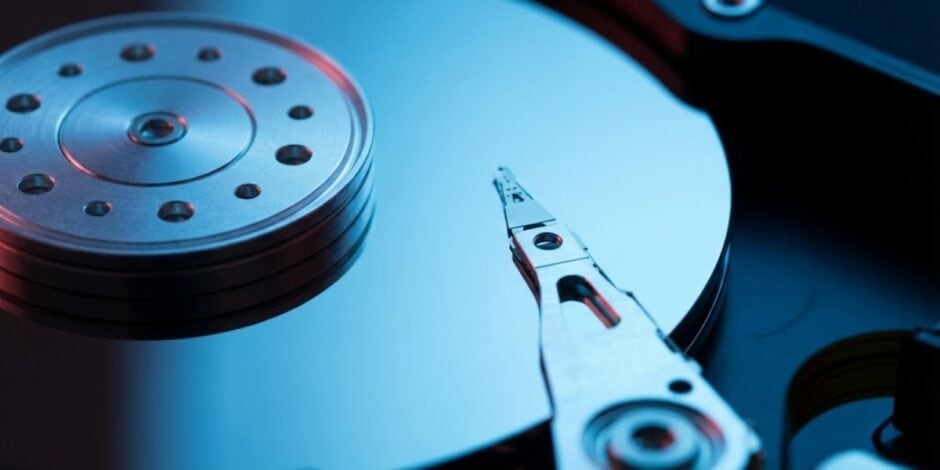
Early recognition can save your data. Watch for these signs:
- Unusual clicking or grinding noises.
- Files are suddenly disappearing or becoming corrupted.
- Slow performance or frequent crashes.
- Inability to access partitions or drives.
- Strange system errors during boot or file access.
If you notice any of these signs, stop using the drive immediately. Continuing to read or write data can worsen the damage and reduce recovery chances.
Step 3: Safe First Actions to Take
When a hard drive fails, the first few steps you take are critical:
- Do not panic or act hastily.
- Stop using the drive immediately. Every read/write action risks overwriting lost files.
- Disconnect the drive from your computer safely. Avoid removing it abruptly, as this can cause further mechanical damage.
- Avoid DIY repairs like opening the hard drive casing or hitting it to “fix” stuck parts.
- Create a disk image (if the drive is still partially accessible) on another storage device. This preserves a copy for recovery attempts without further damaging the original disk.
- Use read-only recovery methods if attempting software recovery.
Step 4: Recovery Software: How Far Can It Go?

For logical failures, data recovery software can be a lifesaver. Popular options include:
- Recuva
- EaseUS Data Recovery Wizard
- Stellar Data Recovery
These tools can recover accidentally deleted files, corrupted partitions, or formatted drives. However, software cannot fix physical damage. Attempting software recovery on a mechanically failing drive can worsen the damage. Always use read-only modes and avoid installing recovery tools on the affected drive.
Step 5: What Not to Do: Mistakes That Can Make Things Worse
Knowing what not to do is just as important as knowing what to do:
- Do not format the drive unless you have a backup. Formatting overwrites critical data structures.
- Do not attempt to open the drive yourself. Hard drives are sensitive, and even a speck of dust can destroy data permanently.
- Do not install recovery software on the failing drive. This can overwrite lost files.
- Do not ignore warning signs like unusual noises; early intervention is key.
These mistakes are surprisingly common and often lead to permanent data loss.
Step 6: When Professional Recovery is Unavoidable
Sometimes, your data is too valuable or the damage too severe to handle at home:
- Mechanical or PCB failures.
- Head crashes or severe platter damage.
- Multiple failed recovery attempts.
- Drives containing highly critical or irreplaceable data.
Professional recovery labs use cleanrooms and specialized tools to recover data safely. While it can be expensive, it is often the only option for high-value data. Attempting DIY fixes in these situations usually makes recovery impossible.
Conclusion
Hard drive failures are stressful, but knowing the difference between logical and physical damage, recognizing warning signs, and taking the right initial steps can significantly improve your chances of data recovery. Always remember the golden rules: stop using the drive, avoid DIY fixes, do not install recovery software on the affected drive, and consider professional help when necessary.
Regular backups remain your best defense. While recovery options are available, prevention is always better than a cure. By understanding how hard drives fail and acting carefully, you can avoid panic and ensure your important files remain safe, even in the event of a failure.