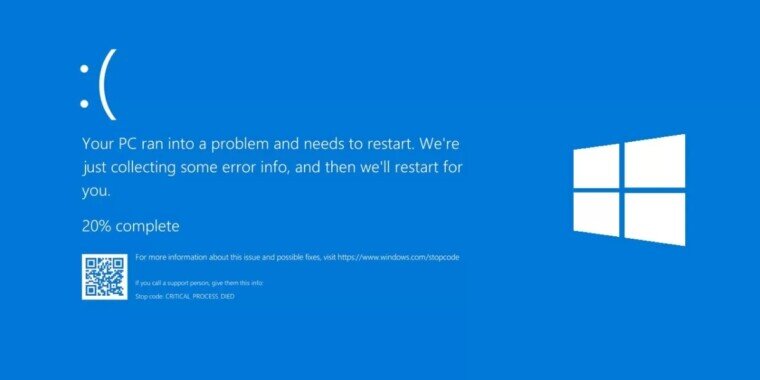
If you’ve ever been working on something important, and suddenly your Windows PC crashes with a terrifying blue screen, you know how frustrating it can be. One moment everything seems fine, and the next moment your screen is filled with white text on blue, sometimes with a cryptic “Stop Code” that looks more like a secret message from a different world. The chaos feels random, but it’s not magic; it’s your computer trying to tell you something important.
Ignoring these blue screen errors, or BSODs (Blue Screen of Death), is tempting, but it rarely helps. Whether the cause is a damaged driver, a software bug, or failing hardware, every crash leaves hints regarding what went wrong. Understanding those clues is the key to finally fixing the problem instead of repeatedly restarting and hoping for the best.
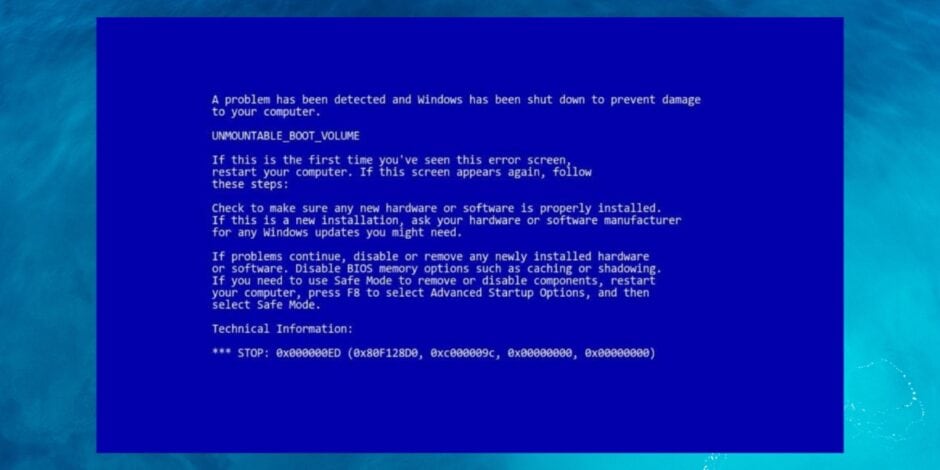
Windows blue screens are scary because they interrupt your workflow and can sometimes feel unpredictable. But in reality, they are a diagnostic tool built into your system. They exist to prevent further damage when Windows detects something that could corrupt your data or destabilize your system. The first step toward solving the problem is to accept that crashes are meaningful and that the error codes displayed, however cryptic, can guide you to the root cause. In this article, we will break down blue screen errors in practical, step-by-step terms, covering everything from driver conflicts to hardware faults, showing you how to diagnose, interpret, and fix them without guessing.
Understanding the Blue Screen
The blue screen is Windows’ way of protecting itself. When something goes wrong at a low level, like a driver or hardware fault, Windows stops all operations to avoid data corruption. The screen displays a “Stop Code,” along with technical details, memory addresses, and sometimes a QR code linking to Microsoft’s support page.
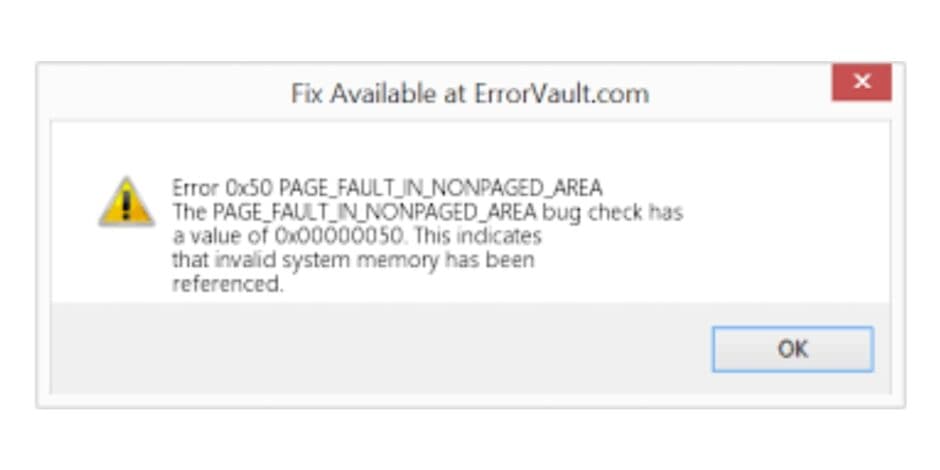
This may seem overwhelming, but it is not random. Each code points to a specific type of error. For example, (IRQL_NOT_LESS_OR_EQUAL) usually indicates that a driver tried to access restricted memory incorrectly, while (PAGE_FAULT_IN_NONPAGED_AREA) often points to bad RAM or a driver conflict. Understanding these codes is critical because repeating crashes are rarely caused by a single random glitch; they are symptoms of deeper issues.
Some users ignore blue screens, hoping they won’t happen again. Unfortunately, Windows rarely forgets a problem on its own. Even if a system restarts, underlying issues persist, and the next crash can be more severe. Reading and interpreting the error codes is your first real step toward control. You don’t need to memorize every possible code; just know how to capture the information and look it up to identify whether the crash is software, driver, or hardware related.
How to Read and Interpret Error Codes
If you see a blue screen appear, take a moment to note the ‘Stop Code’ displayed in capital letters, such as (SYSTEM_SERVICE_EXCEPTION) or (KMODE_EXCEPTION_NOT_HANDLED). Modern Windows also allows you to scan the QR code on-screen with your phone, which links to Microsoft support pages. But the most powerful tool is the minidump file stored on your computer, usually in (C:\Windows\Minidump). These small files contain the memory state at the moment of the crash and can be analyzed with free tools like BlueScreenView or WinDbg.
Once you have the code, search for it along with your Windows version. You’ll often find that certain codes correlate strongly with specific drivers or hardware. For example, (IRQL_NOT_LESS_OR_EQUAL) might appear after a GPU driver update, while (MEMORY_MANAGEMENT) often points to RAM issues. Understanding the pattern is essential: one crash might be harmless, but repeated crashes with the same stop code are almost always pointing to the same root cause.
Driver Conflicts – The Practical Cause
Driver conflicts are one of the most common causes of blue screen errors. A driver is software that allows Windows to communicate with hardware. If it’s outdated, incompatible, or recently updated, it can crash your system. For example, installing a new graphics driver from a third-party website rather than the official manufacturer could introduce subtle bugs. Similarly, network or audio drivers may occasionally misbehave after Windows updates.
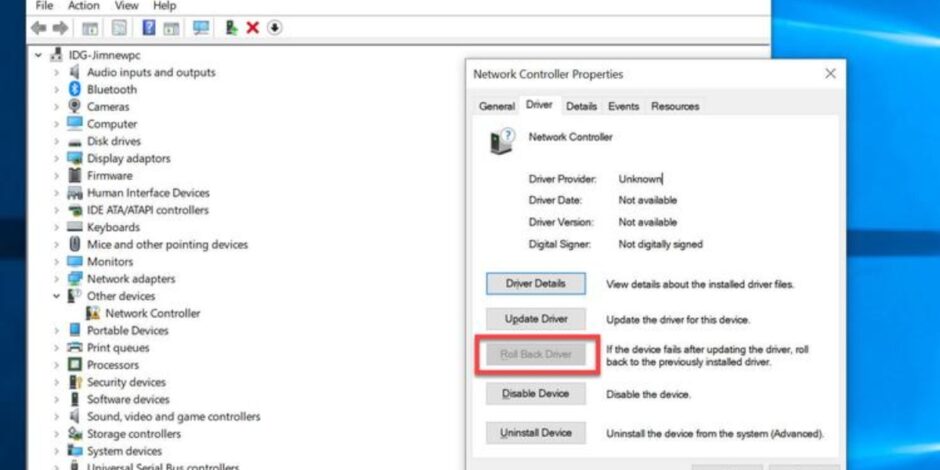
The first step in dealing with drivers is to identify recent changes. If your PC started crashing after a driver update, that driver is the likely culprit. You can safely roll back a driver through Device Manager: right-click the device, and choose Properties → Driver → Roll Back Driver. If you’re not sure which driver is causing the crash, you can start Windows in Safe Mode, which loads only essential drivers. From there, disable or uninstall recently added drivers and restart the system. For stubborn issues, use Driver Verifier, a Windows tool that stresses drivers to reveal misbehaving ones, helping you isolate the problem without guessing.
Real-world example: a gaming PC might crash frequently with (VIDEO_TDR_FAILURE) due to a recent GPU driver. Rolling back to the previous stable driver usually resolves the crashes. The key is not to panic; drivers are replaceable and reversible. Document the version numbers and installation dates; this helps when testing multiple drivers.
Hardware Faults
While drivers often get the blame, hardware problems are just as common. Failing RAM, overheating, or storage errors can cause crashes that mimic software issues. Fortunately, testing is simple and non-destructive.
- RAM: Bad memory often causes (PAGE_FAULT_IN_NONPAGED_AREA) or (MEMORY_MANAGEMENT) errors. Use Windows Memory Diagnostic by typing “mdsched.exe” in the Start menu and restarting your PC. For deeper testing, MemTest86 can be run from a USB drive to check for errors over multiple passes. Replace any RAM modules that consistently fail tests.
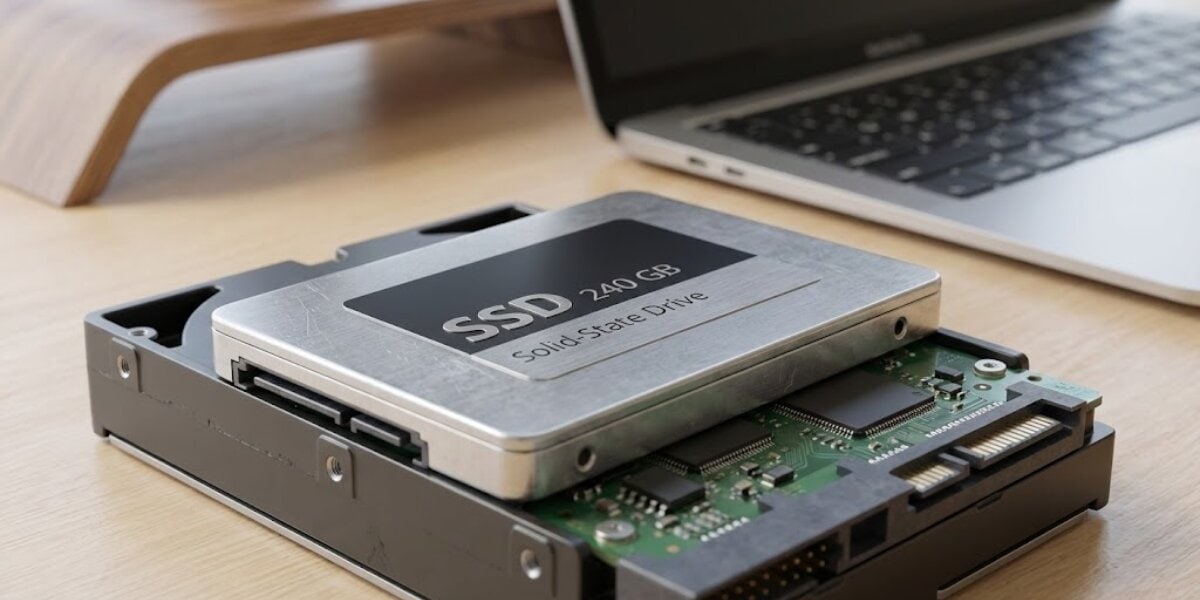
- Storage: A failing SSD or HDD can lead to file corruption, blue screens, or slow performance. Check disk health using (CHKDSK /f /r) in Command Prompt or third-party SMART monitoring tools. Look for bad sectors or read/write errors, which indicate the drive may need replacement.
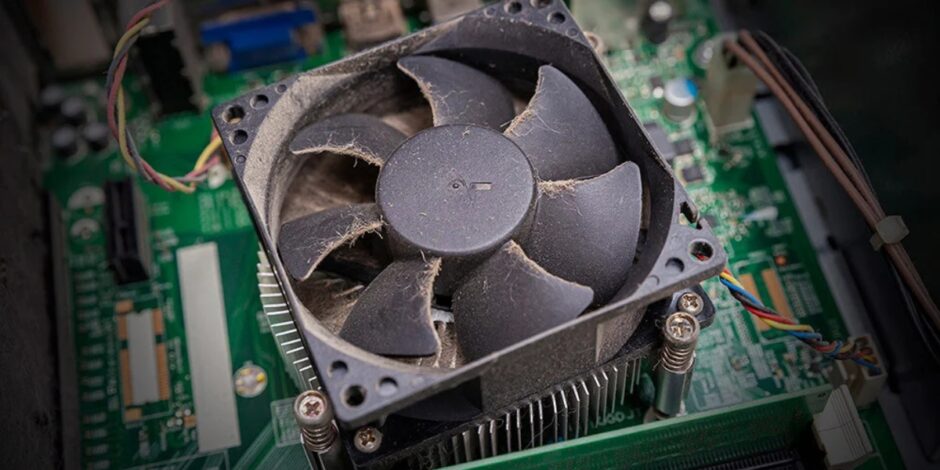
- Overheating: CPUs and GPUs have thermal limits. If a component overheats, it can cause immediate crashes. Monitor temperatures using tools like HWMonitor or Core Temp. Ensure fans are clean, airflow is unobstructed, and thermal paste is properly applied on older systems.
- Power Supply: An unstable or failing PSU can produce random crashes under load. Check that all connections are secure, and consider testing with a known-good PSU if problems persist.
These steps allow you to diagnose hardware problems safely, without risking further damage.
Software Conflicts and System Integrity
Sometimes, the cause isn’t drivers or hardware but corrupted system files or conflicting software. Windows updates, malware, or recently installed applications can trigger blue screens. Use the System File Checker by opening Command Prompt as administrator and running (sfc /scannow). For deeper repair, use (DISM /Online /Cleanup-Image /RestoreHealth). If crashes started after a recent update, consider using System Restore to revert to a stable state. Always check Event Viewer → Windows Logs → System to find patterns indicating repeated errors.
Step-by-Step Diagnostic Plan
Here’s a methodical approach to turn chaos into control:
- Document the crash: Write down the stop code, error message, and what you were doing.
- Check recent changes: Identify recent driver updates, software installs, or Windows updates.
- Safe Mode: Boot into Safe Mode to see if crashes persist.
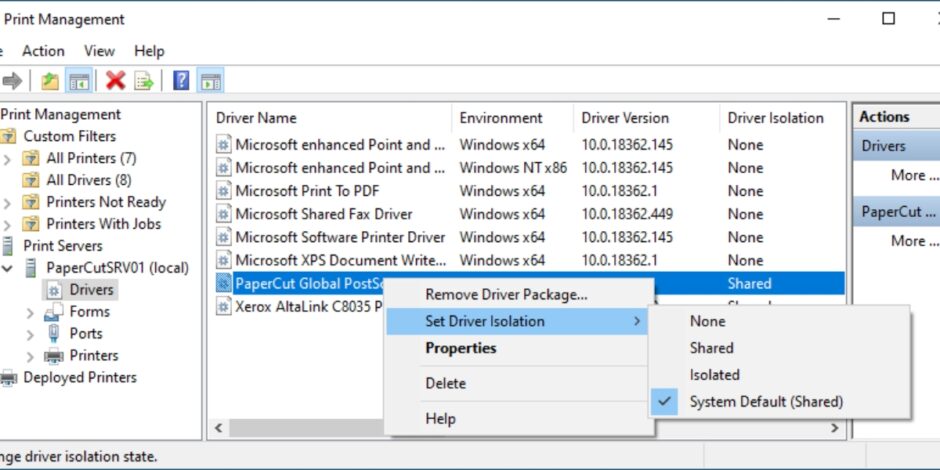
- Driver isolation: Roll back or update drivers one at a time, focusing on GPU, network, and audio drivers.
- Hardware testing: Run RAM tests and disk checks and monitor CPU/GPU temperatures.
- System file check: Run sfc and DISM to repair corrupted Windows files.
- Observe patterns: Repeating crashes with the same stop code indicate the same root cause.
- Incremental changes: Make one change at a time to see what resolves the crash, documenting each step.
Following this plan prevents random fixes and helps you pinpoint the real problem, whether software, driver, or hardware.
Prevention Tips
- After diagnosing and fixing blue screen issues, prevent future crashes:
- Keep drivers up-to-date from official manufacturer websites only.
- Avoid unnecessary software installs from unknown sources.
- Regularly clean dust from fans and ensure proper airflow.
- Monitor disk health and perform routine maintenance using Windows tools.
- Back up important files so a crash doesn’t result in data loss.
Conclusion
Experiencing a blue screen can make even experienced PC users feel helpless, especially when it happens in the middle of work, gaming, or an important project. The truth is, these crashes are usually a symptom, not a permanent problem. By paying attention to the stop codes, keeping track of driver updates, and checking your hardware step by step, you can often identify the exact cause without guessing.
In real life, users spend weeks frustrated by random crashes, only to find it was a single failing RAM stick or an overlooked GPU driver update. Taking a methodical approach, documenting each crash, testing hardware carefully, and rolling back or updating drivers can save hours of stress and prevent data loss. Once you understand the patterns behind your blue screens, you’ll not only fix the current problem but also gain confidence in handling future PC issues, turning what feels like chaos into control.