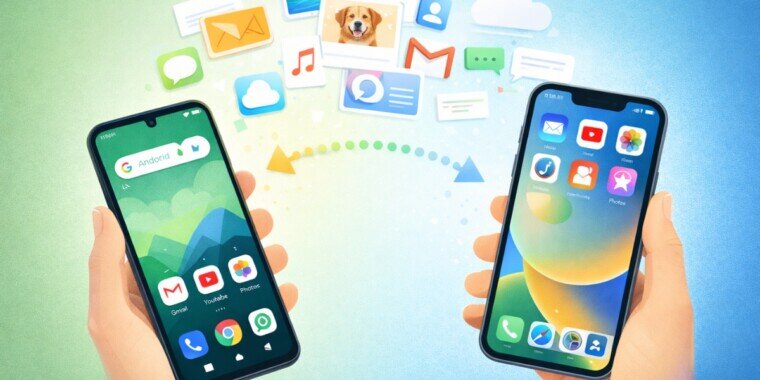
Every year, millions of people make the jump from Android to iPhone. Some are drawn by Apple’s privacy reputation, others by the promise of longer software support, and many simply want to try something different. Whatever the reason, the moment the decision is made, anxiety follows: what happens to years of contacts, photos, messages, and app data?
The good news is that the process is far more manageable than it looks. Apple has made the transition easier by developing tools specifically designed to help Android users migrate. Google and Apple are working to make cross-platform data transfers even more seamless, with deeper integration directly into device setup processes. With the right preparation and a clear order of operations, most people can complete the entire migration in a single session.
This guide walks through each stage in sequence.
Before You Begin: Preparation That Prevents Problems
The single most important thing you can do before touching either device is to back up your Android fully. Back up to Google Drive, which will preserve contacts, call history, calendar events, app data, and settings. Take a separate backup of your photos using Google Photos if you are not already using it.
Check free storage on the iPhone, remembering to include what is stored on your Android’s microSD card if you use one. Transfers are most reliable on an untouched iPhone. If you have already set yours up, open Settings, then General, then Transfer or Reset iPhone, and choose Erase All Content and Settings. It sounds drastic, but a clean slate lets the Move to iOS tool drop data into the right places.
Fully charge both phones, or keep them plugged in throughout. Transfers can take 30 to 60 minutes or more depending on how much data you have. Use a strong and stable Wi-Fi network. Avoid using a cable connection if your devices have different USB-C types, as this can cause interruptions. Wi-Fi is the safer and more reliable option in most cases.
Also take a few minutes to write down every app installed on your Android. Move to iOS will not move apps from your old Android phone, so note all the apps you have. Big names such as Facebook, WhatsApp, and Instagram are easy to find in Apple’s App Store, but some Android apps have no iOS equivalent.
Step 1: Transferring Contacts
Contacts are often the first concern, and they are also the easiest category to handle.
The easiest way to transfer contacts from Android to iPhone is to use Apple’s Move to iOS app during setup. But even if you have already set up your iPhone, you can still transfer contacts using Google account sync, SIM card import, or manual export methods.
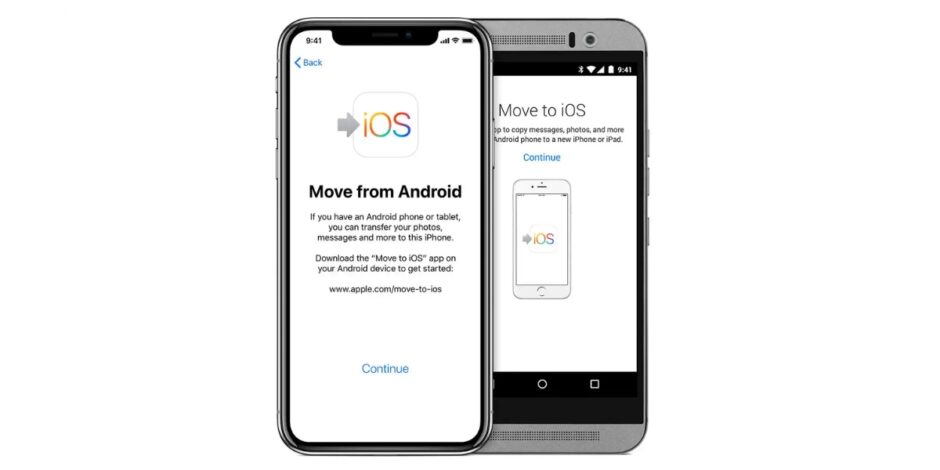
The Google sync method is the most reliable ongoing solution. On your Android device, open the Settings app and go into Google services, then Backup, and ensure Backup by Google One is turned on. On your iPhone, go to Settings, then Mail, then Accounts, then Add Account, and select Google. Sign in with your Google credentials, enable Contacts, and tap Save. Open the Contacts app on iPhone and wait for the sync to complete. This method keeps your contacts updated in real time and means you can access them on any signed-in device.
If you prefer a one-time manual transfer, export your contacts from your Android Contacts app as a .vcf (vCard) file, email it to yourself, open it on the iPhone, and tap Add All Contacts. To avoid duplicates, enable Merge Duplicates in Settings under Contacts once the import is done.
Step 2: Moving Photos and Videos
Your photo library is usually the heaviest piece of data to move, and the method you choose here has the biggest impact on total transfer time.
Move to iOS transfers camera photos and videos, photo albums, and files and folders from your Android to your iPhone during initial setup. On your Android device, select the content you want to transfer and tap Continue. Even if your Android device shows the process is complete, leave both devices alone until the loading bar on your iOS device finishes. The whole transfer can take a while depending on how much content you are moving.
For users with very large libraries, or who have already set up their iPhone, Google Photos is the best fallback. Install Google Photos on your iPhone, sign in with your Google account, and all your backed-up photos will be available immediately without re-transferring them as files.

One practical tip before you begin: consider which photos are truly worth transferring versus those you can live without. Curating your photo library not only speeds up the transfer but ensures your new iPhone starts with a cleaner, more organized collection. During preparation, identify any apps that store photos locally rather than in the cloud, as these will require individual attention.
Step 3: Transferring WhatsApp Chats
WhatsApp is the category that causes the most anxiety, because Android and iPhone use different backup systems: Google Drive on Android, and iCloud on iOS. The two do not speak to each other natively.
With the official announcement of WhatsApp supporting migration from Android to iPhone for free, users can use the Move to iOS app to transfer WhatsApp chat history, photos, videos, and voice messages freely with the same phone number. However, the single most important requirement is that your iPhone is at the Apps and Data setup screen. If you have already completed setup, you must perform a factory reset to proceed.
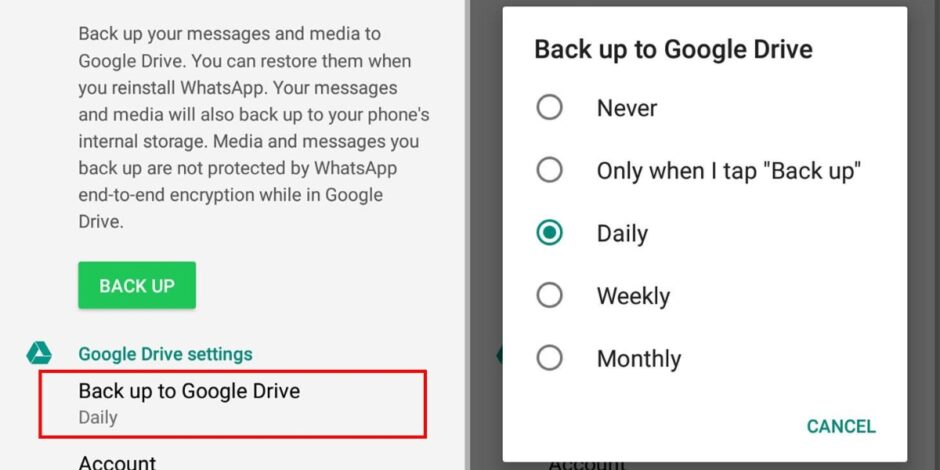
The process works as follows:
- During iPhone initial setup, when you reach the Transfer Your Apps and Data screen, tap From Android.
- Download the Move to iOS app from the Play Store on your Android device.
- Connect both devices to the same Wi-Fi network.
- Open the Move to iOS app on your Android, agree to the terms, and enter the one-time code shown on your iPhone.
- When prompted, select WhatsApp as one of the data types to transfer.
- Follow the on-screen prompts until the transfer is complete.
- Install WhatsApp on your iPhone, sign in with the same phone number, and your chat history will appear.
Keep in mind that this is the only method to transfer WhatsApp data from Android to iPhone using the free official route. If you have more than 10 GB of data, the process may take more than two hours.
If you have already set up your iPhone and do not want to factory reset it, third-party tools such as MobileTrans or iCareFone Transfer can migrate WhatsApp data without requiring a device reset. These are paid options but work reliably across platforms.
For individual conversations you want to preserve as a readable record without importing them into the app, WhatsApp’s built-in Export Chat feature lets you select a conversation, tap the three-dot menu, choose Export Chat, and send the chat history to your email address in text format.
Step 4: Other Messages and SMS
Move to iOS transfers message history and SMS messages as part of the standard migration process. Standard text messages move across without any additional steps required.
One issue specific to users who have previously owned an iPhone is iMessage interference. If your phone number was ever linked to iMessage and you did not properly deregister it before switching to Android, text messages from other iPhone users may still route to your old Apple ID instead of reaching your number. The solution is to visit Apple’s online Deregister iMessage page, enter your phone number, receive a verification SMS, and confirm deregistration. Doing this before you activate your new iPhone prevents the problem entirely.
Step 5: Understanding App Limitations
This is the area where expectations need to be set clearly. You cannot directly transfer apps or their purchase licenses from Android to iPhone, because they are sold through different app stores: Google Play Store versus Apple App Store. You will need to find the iOS versions of your apps on the App Store and repurchase any paid ones.
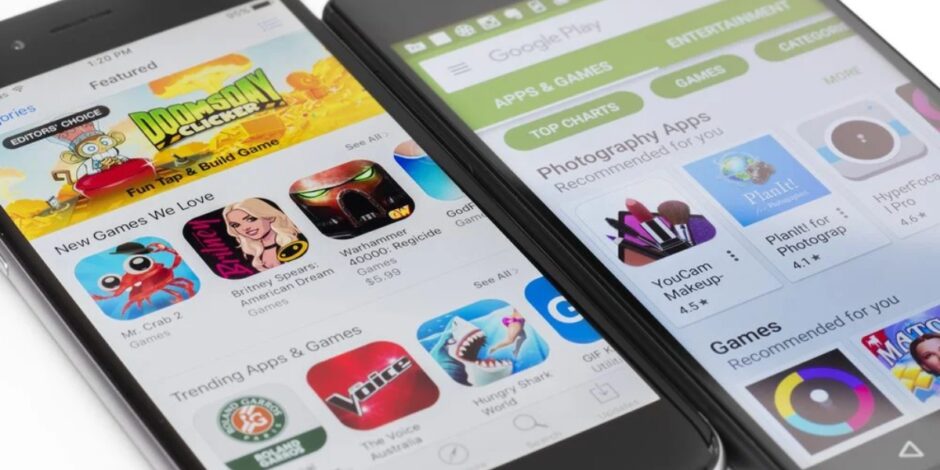
iOS does not allow sideloading outside the European Union and Japan. Apps must be installed through the App Store, which means any Android app without an iOS equivalent simply cannot be used on iPhone. Most major apps, including Google’s entire suite, are available on iOS with full functionality. The gaps are mostly in niche utility apps, region-specific tools, and apps that rely on Android’s more open file system.
Two-factor authentication tokens are another consideration. Authenticator apps like Google Authenticator or Authy must be manually backed up or transferred using their export features before you wipe your Android. If you rely heavily on authenticator codes, plan this step carefully to avoid being locked out of accounts on the other side.
Step 6: Post-Transfer Verification
Do not consider the migration complete until you have checked every category manually.
Use this checklist to confirm everything is in place:
- Contacts: make sure your contact count matches.
- Messages: check that important messages transferred. Note that Apple groups messages differently, so counts might not match exactly.
- Gmail accounts: ensure accounts are set up correctly.
- Apps: not all apps transfer automatically, so you will need to log in to each one on your iPhone.
- Calendar events: verify your events, especially if you were not syncing with Google. Accessibility settings: check that any special settings carried over.
After completing setup, sign in with your Apple ID, which is essential for accessing iCloud services and syncing your data across Apple devices. Set up Face ID or Touch ID for secure authentication, and create a passcode to protect your device. Take some time to verify that all your data was successfully transferred. Check your photos, videos, contacts, messages, and apps to ensure nothing is missing.
Music, books, and PDFs need to be moved over manually. If they are available on both Google Play and the App Store, some free apps will also transfer automatically. For anything that did not make the journey, download it directly from the App Store and log back in with the relevant credentials.
Final Thought
The fear of switching ecosystems is almost always worse than the actual process. The tools exist, they work, and Apple has invested considerably in making the entry door to iOS as frictionless as possible.
iPhones typically receive software updates for five to six years, while many Android models get only two to three years. For most users, the migration is a one-afternoon project. Once it is done, it is done, and there is no reason to look back at a single lost contact or missing photo.