

In the fast-moving world of digital marketing, Google Analytics 4 (GA4) has become the go-to tool for anyone determined to grow their website traffic meaningfully. GA4 moved away from the old Universal Analytics approach, which ended support in 2023, and now centers on real user behavior through events, engagement signals, and seamless cross-device tracking.
This guide keeps things straightforward and focused on results. It provides clear, practical steps to uncover hidden opportunities, fix weak spots in your user journeys, sharpen your content, and bring in more visitors through smarter decisions rather than endless trial and error.
GA4 stands out because of its built-in machine learning that surfaces predictions and insights automatically, all while respecting modern privacy standards such as GDPR and CCPA. Businesses that implement GA4 thoughtfully often see strong returns, including up to 34% better marketing ROI and around 28% lower customer acquisition costs within the first 90 days. Proper setup forms the foundation, so let’s walk through everything step by step.
Step 1: Get GA4 Set Up Right from the Start
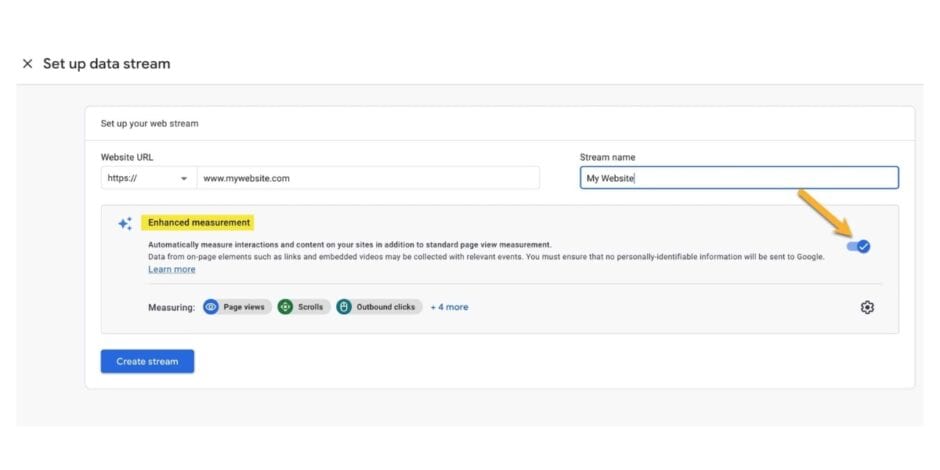
Nothing useful happens until GA4 collects accurate data, so begin with a solid installation. Visit analytics.google.com to sign in or create a new account. If you still have an old Universal Analytics property, migrate it fully since the two systems do not share data.
To create a fresh GA4 property, go to the Admin section at the bottom left, select “Create Property,” fill in your website details, and GA4 will provide a measurement ID (it begins with “G-“). Installing the tracking code comes next. The simplest method involves Google Tag Manager, but you can add the GA4 script manually by copying it from Admin > Data Streams > your stream > tagging instructions, then placing it just before the closing tag on every page.
WordPress users have an easier path with plugins such as MonsterInsights. Install the plugin, connect it to your GA4 property, and verification happens automatically. To confirm everything works, use GA4’s DebugView. Install the Google Analytics Debugger Chrome extension, enable debug mode, visit your site, and check Admin > DebugView for live events appearing in real time.
Go further than the basics for better results. Under Admin > Data Settings > Data Retention, set event data retention to the maximum 14 months (or longer if you have Google Analytics 360). Turn on Google Signals to capture cross-device behavior, which reveals how users move between phone and laptop. Connect GA4 to Google Search Console for deeper organic search details and to Google Ads for paid campaign visibility. These links show exactly which keywords and ads deliver the best traffic and results, helping you focus spending where it counts most.
Pay attention to privacy too. Many regions require cookie consent, so activate Consent Mode in your setup. It uses modeling to estimate behavior from users who decline cookies, keeping your insights reliable. Test thoroughly by walking through typical user paths and confirming that page views, scrolls, clicks, and other events register correctly. Allow 24 to 48 hours for initial data to appear, and you will soon have a clear view of incoming traffic.
Step 2: Focus on the Metrics That Truly Matter for Traffic Growth

GA4 offers hundreds of metrics, but a handful reveal the most about your site’s health and growth potential. Prioritize these to spot trends quickly and avoid getting lost in noise.
Total Users counts distinct visitors in your chosen timeframe and serves as the primary user metric now. It breaks down into Active Users (those who engage) and New Users (first-timers). Check this regularly to track overall audience expansion. If New Users remain flat while Total Users grow slowly, shift energy toward broader acquisition tactics like SEO improvements or social promotion. For example, with 10,000 monthly Total Users and only 20% new, your site depends too much on repeat visitors, which limits long-term scaling.
Sessions group interactions that occur close together, typically ending after 30 minutes of inactivity. Look at Sessions Per User to gauge loyalty; higher numbers point to content that keeps people coming back. When sessions decline, head to Reports > Acquisition > Traffic Acquisition. This report segments traffic by channels such as Organic Search, Direct, Paid Search, Social, and Referral. Use it to strengthen high-performing sources, especially Organic by targeting keywords that already show promise.
Engagement metrics form GA4’s core strength. Engagement Rate measures the share of sessions with meaningful interaction (over 10 seconds, multiple pages, or a conversion). Average Engagement Time shows focused time on site, and Event Count tallies actions like button clicks or scrolls. If Engagement Rate falls below 50%, content likely fails to hold attention, so audit and refresh high-exit pages. Views track screen loads, while pairing them with engagement helps pinpoint where users lose interest.
For traffic-focused analysis, pay close attention to User Acquisition metrics like First User Source/Medium. These highlight top entry points. If a platform like Reddit sends 30% of visitors with strong engagement, produce more content tailored to that audience. Build custom dashboards in Reports > Library > Create New Dashboard. Add key metrics, comparisons (this month versus last), and set alerts for significant drops (over 10%) so you catch problems fast. GA4’s data-driven attribution credits touchpoints across journeys, giving a fuller picture than last-click models.
Step 3: Use Behavior Analysis to Understand Real User Paths

GA4 replaces older flow reports with flexible tools like Path Exploration, which maps how visitors move through your site from entry to exit.
Find it under Explore > Path Exploration. Start fresh, choose “Page Title and Screen Class” as the dimension, and set “Session Start” as the beginning node. This creates a visual map showing common routes. If blog readers rarely reach product pages, add stronger calls-to-action or related links. Frequent drop-offs right after the homepage often mean confusing navigation or weak first impressions, so simplify menus and highlight value immediately.
Key reports include Engagement > Pages and Screens, which ranks content by views, users, and engagement time. Sort by Average Engagement Time; pages holding attention for two minutes or more deserve replication (videos, clear visuals, interactive elements). The Events report under Engagement details specific actions like scrolls or downloads. Shallow scroll depth on articles suggests formatting or length issues.
User Explorer (Explore > User Explorer) examines anonymized individual paths for patterns such as repeated cart abandons. For acquisition insights, filter Landing Pages in Acquisition > Traffic Acquisition. A high-traffic article with poor retention benefits from internal linking to keep visitors exploring.
Layer in Demographics and Technology reports. Higher mobile bounces call for responsive fixes. Create Segments to compare Organic versus Paid traffic behaviors, revealing which source delivers better quality visitors and guiding budget adjustments.
Path Exploration excels at funnel checks. Customize sequences (Homepage > Blog > Contact) to spot weak steps, then reinforce them with clearer prompts. These insights reduce friction, extend sessions, and encourage organic sharing that naturally increases traffic.
Step 4: Define and Track Conversions to Connect Traffic to Results

Conversions, now called key events in GA4, mark meaningful actions like purchases, sign-ups, or form submissions. Tracking them links raw traffic to business outcomes.
In Admin > Events, toggle “Mark as conversion” for built-in events (such as page_view on thank-you pages). For custom needs like form completions, use Google Tag Manager. Create a GA4 Event tag named something clear (e.g., “generate_lead”), trigger it on submission, add optional parameters (value, category), publish, and mark it as a key event in GA4. Confirm in DebugView by testing a real submission.
Import these into Google Ads for smarter bidding and enhanced conversions, which improve matching with privacy-safe data. Monitor performance in Reports > Engagement > Conversions for counts, values, and attribution. Low conversion rates with solid traffic indicate barriers like slow pages or confusing forms.
Build funnels in Explore > Funnel Exploration (e.g., View Item > Add to Cart > Purchase). Low completion (under 5%) suggests testing checkout simplifications. Leverage predictive metrics such as Purchase Probability to create audiences for retargeting, attracting higher-quality traffic over time.
Step 5: Make Smart Decisions to Drive Sustainable Traffic Growth

GA4 turns data into growth when you act on it consistently. Low Organic Traffic? Integrate Search Console to identify high-impression, low-click keywords, then refine titles and descriptions for stronger click-through rates.
Rebalance spending using Traffic Acquisition insights. If Social channels deliver affordable, engaged visitors, allocate more resources there. Pages and Screens reports highlight top content; expand successful topics and promote them through newsletters or social shares.
GA4’s machine learning offers forecasts for churn or revenue. Build audiences around “likely to engage” users and target them with relevant ads. Run A/B tests on headlines or layouts, tracking results directly in GA4 for clear winners.
One real example: a SaaS company reallocated ad budgets based on lifetime value insights from GA4, achieving a 43% rise in qualified leads. Schedule weekly dashboard reviews of core KPIs, watch for seasonal patterns, and adjust proactively.
Advanced Practices for Long-Term Success
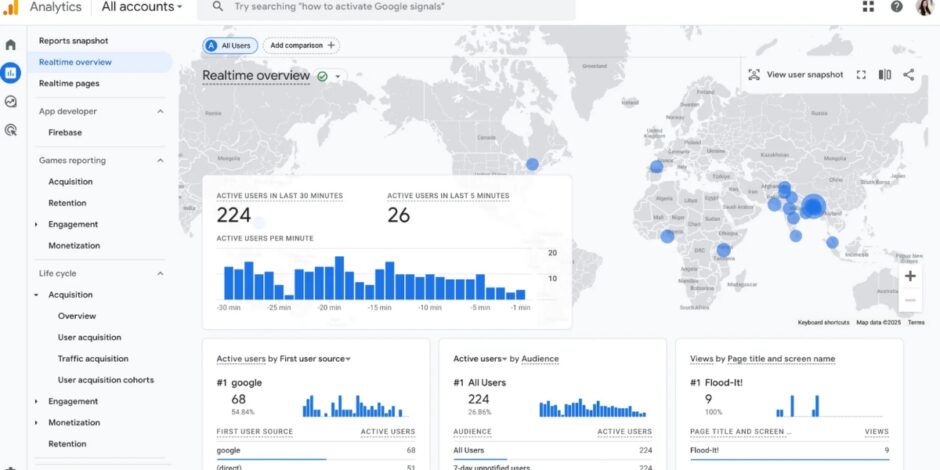
Export to BigQuery for deeper custom analysis or use AI Insights for automatic anomaly detection. Pair GA4 with tools like Semrush to close keyword gaps. For stores, enable Enhanced Measurement to capture scrolls, outbound clicks, searches, and downloads without extra code.
Common fixes include filtering internal traffic (Admin > Data Streams > Define Internal Traffic) and setting up cross-domain tracking for multi-site properties. Server-side tagging improves accuracy in privacy-heavy environments.
Take Action and Watch Your Traffic Grow
GA4 gives you the clarity to move from guessing to knowing. Master the setup, track essential metrics, analyze behaviors, tie traffic to conversions, and decide with confidence. Begin today: review your current configuration, pick one key metric to monitor closely, and build from there. Consistent effort delivers real increases in visitors, engagement, and results. Analytics rewards regular attention, so check in monthly, refine your approach, and see your online presence strengthen over time.