
Introduction: The “Disk Full” Panic
It is February 2026 and you are about to capture a perfect moment, but your phone freezes. The notification is dreaded and familiar: Storage Full.
In the past, we simply deleted a few blurry photos. Today, that strategy fails. Why? Because modern storage is not filled by just your files. It is filled by system intelligence, aggressive caching, and high-fidelity assets you didn’t even know existed.
This guide decodes the hidden mechanics of your device. We will explore where your gigabytes actually vanish, from the 7 GB “AI Tax” on new iPhones to the hidden “Recall” snapshots on Windows 11. Best of all, we will fix it without deleting the memories that matter.
The Phantom Files: Decoding “System Data” & “Other”
The biggest culprit is often labelled vaguely as “System Data” (iOS) or “Other” (Android). To those unfamiliar, it is basically a dumping ground for temporary files that refused to leave.
iOS 18: Taming the System Data Beast
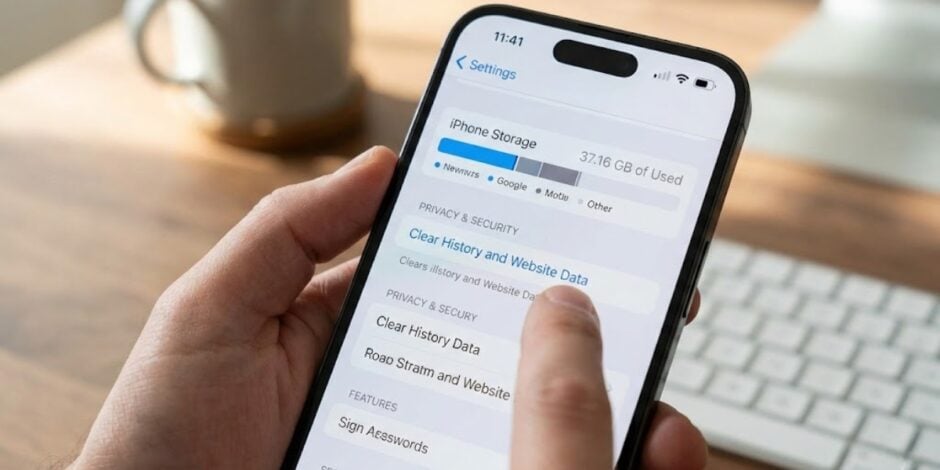
On iPhones, “System Data” can balloon to 20 GB or more. This usually consists of streaming buffers, Siri voices, and stuck logs.
The “Date Trick” Fix (2026 Edition)
A persistent bug in iOS 18 causes System Data to retain expired cache files. Users have found a specific workaround to force a cleanup:
- Check your storage before initiating.
- Swipe up and close every running application.
- Enable Airplane Mode and turn off Wi-Fi/Bluetooth.
- Go to Settings > General > Date & Time. Turn off “Set Automatically” and move the date forward by one year.
- Keep the phone unlocked on the home screen for 60 seconds. The OS will perform a “panic cleanup”, deleting old caches because it thinks they are now ancient.
- Set the date back to “Automatic” and turn off Airplane Mode. Check your storage. You often reclaim 5-10 GB instantly.
Android 15: The “Other” Storage Fix
Android’s “Other” category often hides failed downloads and app-specific assets (like game expansion files).
The Recovery Mode Wipe
If your storage seems unaccounted for after a major update, cached system updates might be the cause.
Boot your phone into Recovery Mode (usually Power + Volume Up). Select “Wipe Cache Partition.” This deletes temporary system files without touching your apps, photos, or data.
The New 2026 Problem: The “AI Tax”
Artificial Intelligence is no longer just in the cloud; it lives on your phone. To run fast and privately, these models must be stored locally.
Apple Intelligence Storage Requirements
If you use an iPhone 15 Pro or newer running iOS 18.1+, Apple Intelligence reserves a significant chunk of space. However, you lose approximately 7 GB of storage immediately for the on-device models needed for writing tools and Siri. Not many people know this but this space is “reserved.” You cannot delete it unless you completely disable Apple Intelligence features.
Android & Gemini Nano

Android devices using Gemini Nano (like the Pixel 9 or Galaxy S24 series) also host local Large Language Models (LLMs). The Nano-1 model has about 1.8 billion parameters, while Nano-2 has 3.25 billion. These models function like heavy system apps. If you are tight on space, check if you have downloaded offline language packs or AI features you do not use.
Windows 11 Recall
Windows 11 “Copilot+” PCs take snapshots of your screen to help you search your history. These snapshots eat up drive space fast.
How to Limit Recall Storage:
- Open Settings > Privacy & security > Recall & snapshots.
- Expand the Storage section.
- Change Maximum storage for snapshots.
- Default: Often set to 25 GB or more.
- Recommendation: Drop this to 10 GB to reclaim immediate space.
Media Mastery: Stop Deleting, Start Shrinking
You do not need to delete your photos. You just need to store them efficiently.
The Magic of HEIF vs. JPEG
If you still shoot in JPEG (or “Most Compatible”), you are wasting 50% of your space.
- The Tech: HEIF (High Efficiency Image Format) uses advanced compression (HEVC).
- The Math: A library of 10,000 photos takes ~50 GB in HEIF versus ~100 GB in JPEG.
- The Move: Ensure your camera is set to “High Efficiency” in settings.
Video Hazards: ProRAW & ProRes
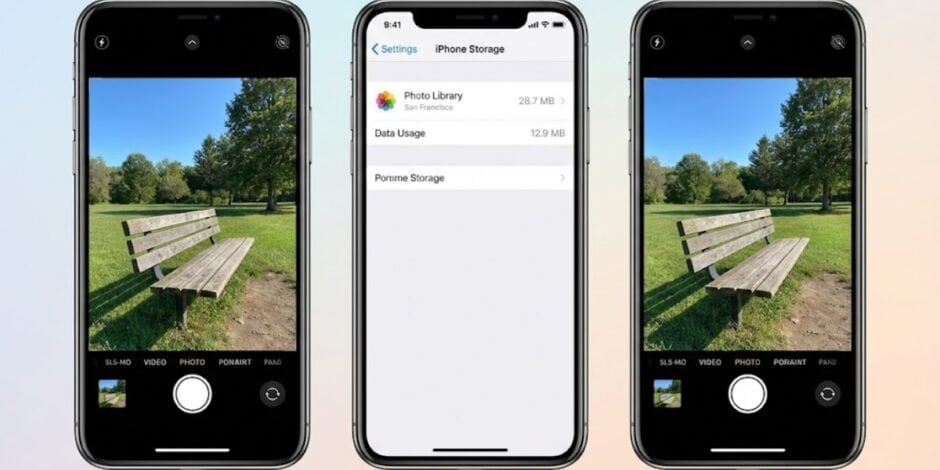
Check your settings immediately as follows:
- ProRes Video: One minute of 4K ProRes video consumes 6 GB.
- ProRAW Photos: A single photo is 25 MB (10x larger than normal).
Advice: Unless you are editing professionally, turn these OFF.
The Cloud Illusion: Sync vs. Backup
Most users misunderstand cloud storage. iCloud Photos and Google Photos are synchronisation services, not hard drive extenders. If you delete a photo on your phone, it disappears from the cloud too.
| Service | Feature to Enable | How it Works |
|---|---|---|
| iCloud | Optimise iPhone Storage | Keeps thumbnails on your phone, full-quality images stay in the cloud. Frees up space automatically when low. |
| Google Photos | Free Up Space | Warning: This deletes the photo from your phone after backing it up. You can only view it with an internet connection. |
| OneDrive | Files On-Demand | Right-click a folder and select “Free up space”. The file stays visible but takes 0 bytes until you click to open it. |
Critical Warning for Google Photos: Never delete a photo from the Google Photos gallery to “save space”. This deletes the cloud copy and the local copy simultaneously. Always use the specific “Free Up Space” button in the menu.
App Assassins: The Hidden Hogs
Social media apps are notoriously greedy. They cache every photo and video you scroll past.
WhatsApp (The Silent Killer)
By default, WhatsApp saves every meme sent to your group chats directly to your camera roll.
- Stop the Bleeding: Go to Settings > Chats and turn OFF “Save to Camera Roll” (iOS) or “Media Visibility” (Android).
- Clean Up: Go to Settings > Storage and Data > Manage Storage. Review items larger than 5 MB and delete them.
Telegram (The Cache King)
Telegram keeps everything in the cloud, but it also caches it locally for speed. This cache can grow indefinitely. Go to Settings > Data and Storage > Storage Usage. Set “Keep Media” to 3 Days. Telegram will delete local files after 3 days. If you want to see them again, just tap the chat, and they re-download instantly.
The 2026 Toolkit: Advanced Steps

If you are still seeing red warnings, use these advanced tools.
Android 15: Manual App Archiving
New in Android 15 is the ability to “Archive” an app manually. This removes the app’s heavy code but keeps your personal data (login, settings). Long-press an app icon > tap App Info > select Archive. The icon stays on your screen (with a cloud symbol). Tap it to re-download and pick up exactly where you left off.
Windows: Compress the OS
You can force Windows to compress its own system files. Open Command Prompt as Admin and type: compact.exe /CompactOS:always. This can free up 2-4 GB on smaller SSDs with zero performance loss.
Conclusion: Build a Routine
Storage management isn’t a one time fix. It’s digital hygiene. Ignore it, and things get messy fast.
Think of it as a simple routine that keeps your phone fast, responsive, and frustration free.
Reboot weekly. A restart clears temporary cache files, refreshes system memory, and quietly fixes many performance hiccups you don’t even realize are building up.
Do a monthly cleanup. Clear your browser cache in Safari or Chrome, review your Recently Deleted photos and videos, and uninstall apps you haven’t opened in months. This alone can free several gigabytes without deleting anything important.
Set it up once, benefit forever. Switch your camera to HEIF or HEVC formats and enable cloud storage optimization. Your photos and videos stay high quality, but your device only keeps lightweight versions locally.
The real shift happens when you understand where storage actually goes. It’s not magic and it’s not your phone “getting old.” It’s cached data, duplicate media, forgotten downloads, and apps quietly hoarding space in the background.
Stop fighting your device. Maintain it.
Welcome to a cleaner, faster, clutter free 2026.