

Accidentally deleting an important WhatsApp message hits differently when all you know is no way to recover them. It can be that one photo your grandmother sent from her new phone, or the address you forgot to save from a contact, or something from a client or your boss.
Naturally, your first instinct is to panic. Or search Google frantically, if not for hoping on an AI chat, searching for answers.
Of course, online there will be hundreds of websites each claiming they can recover deleted WhatsApp messages in minutes, often without needing any backup at all. Hundreds of apps will also pop up, making the same promise.
The catch is that they are all waiting for desperate users like you.
The good news is that if you have a recent backup, recovery is often straightforward. The bad news? Without one, your options shrink dramatically. There’s no magic tool that can pull messages from WhatsApp’s servers because they simply don’t stay there.
Let’s cut through the noise and explain what’s actually possible.
Can You Actually Recover Deleted WhatsApp Messages?
Yes: but only if the message existed in your last backup.
No: if the message was deleted before your latest backup created, or if you have no backup at all.
WhatsApp does not permanently store messages on its servers. Once delivered, they’re gone. Your only real lifeline is a backup created before the deletion happened.
How WhatsApp Actually Works (And Why Recovery Is So Difficult)
Understanding WhatsApp’s Encryption Model
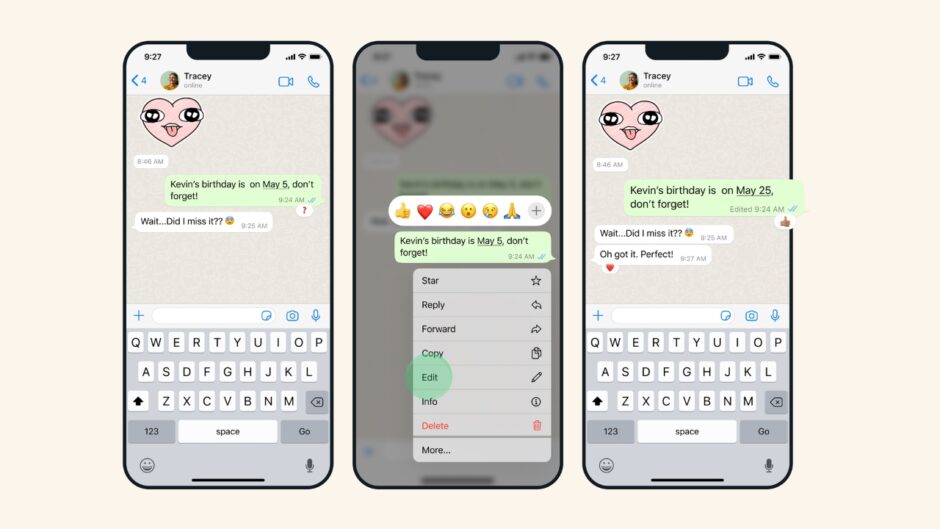
WhatsApp’s design makes recovery difficult, and that’s entirely intentional. When you hit send on a message, WhatsApp encrypts it using end-to-end encryption. This means only you and the recipient can read what you’ve written.
Once your recipient reads the message, WhatsApp removes it from its servers entirely. The company officially states: “Your messages aren’t stored on our servers after they are delivered.”
This single fact explains why recovery is nearly impossible without a backup. WhatsApp can’t restore messages it never permanently stored. The only copy that matters is the one living on your device, or safely backed up somewhere.
When you delete a message from your phone, WhatsApp doesn’t keep a shadow copy hidden somewhere else. It’s simply gone. Unless a backup exists from before you tapped that delete button.
Do You Actually Have a Recent Backup?
If you ever come against a situation like this one, stop everything and answer this one question: Does your backup exist, and is it recent? This is literally the only thing that matters right now.
A backup is a saved copy of your entire WhatsApp conversation history. If a message existed when that backup was created, restoring it will bring the message back. Android backups go to Google Drive as iPhone backups go to iCloud.
Check your backup date immediately: Go to Settings → Chats → Chat Backup. Is your last backup older or newer than when you deleted the message? If it’s older, recovery probably won’t work.
How WhatsApp Backup Schedules Work
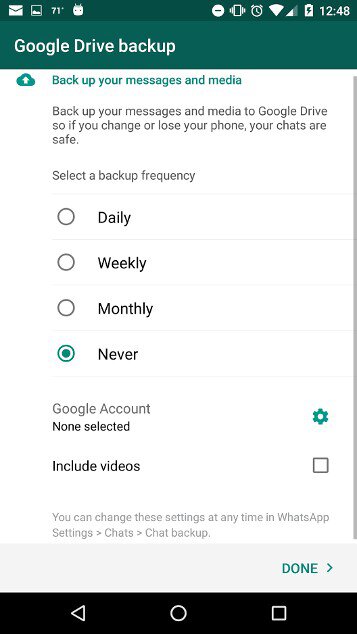
WhatsApp lets you choose when backups happen. You can set it to:
- Daily (the smart choice)
- Weekly (leaves a bigger window for data loss)
- Monthly (risky, lots can disappear)
- Never (no backup exists at all)
- Manual (only when you remember to tap it)
Here’s a practical example to explain how backups actually function: Your backup runs automatically at 2:00 AM every morning. Someone messages you important information at 8:00 PM. You accidentally delete it at 10:00 PM. That message still exists in the backup from 2:00 AM that morning. Restore that backup, and you get the message back.
But if the message arrived and got deleted after 2:00 AM, it won’t be in that night’s backup. You’d need the next day’s backup to have it, unless you deleted it before then.
Where Your Phone Actually Stores Backups
Android Devices
Your Android phone backs up WhatsApp chats to Google Drive (you choose which account). But here’s the thing; most Android phones also create encrypted local backups stored directly on the device. These live separately from your cloud backup.
However, local backups stay on your device for only a limited time before they’re automatically deleted.
iPhones
iPhones back up WhatsApp chats to iCloud. Unlike Android, there’s no accessible local backup you can manually restore from.
Important: Storage Space Matters
If your Google Drive or iCloud is full, backups can fail silently. You might think you have a backup when you actually don’t. Take thirty seconds right now to check that your backup actually exists. Don’t assume.
How to Actually Restore Your Deleted Messages
Step-by-Step Restoration for Android Users
Follow these steps carefully. Timing matters here.
- Confirm your backup exists by going to Settings → Chats → Chat Backup and verifying a backup is listed
- Completely uninstall WhatsApp from your device
- Reinstall WhatsApp from the Google Play Store
- Verify your phone number when the app asks
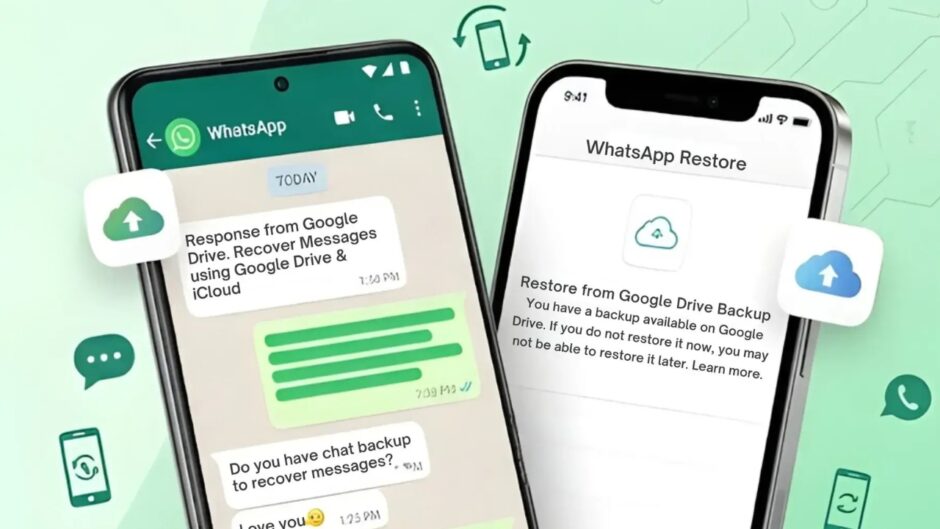
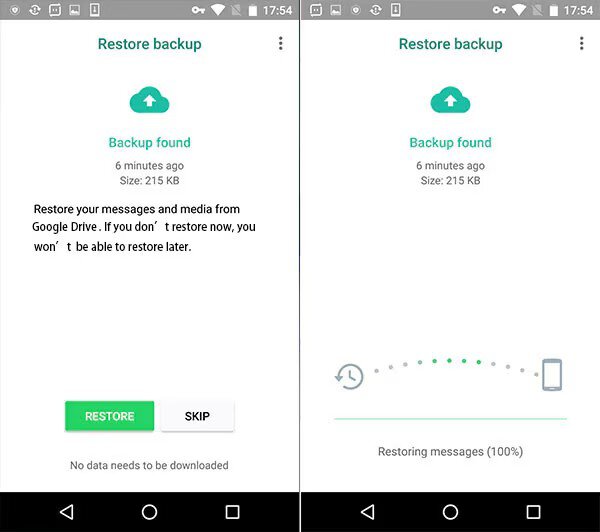
- Watch for the restore prompt: WhatsApp will detect your Google Drive backup and ask if you want to restore it
- Tap “Restore” and then be patient. This can take several minutes depending on how many chats you have
- Wait for completion: once it finishes, your previous conversations will reappear
Step-by-Step Restoration for iPhone Users
The process is nearly identical, just using iCloud instead of Google Drive.
- Verify an iCloud backup exists by going to Settings → [Your Name] → iCloud and confirming WhatsApp appears in the backup list
- Delete WhatsApp from your device
- Reinstall it from the App Store
- Verify your phone number
- Select “Restore Chat History” when prompted
- Wait for restoration to complete
The Critical Timing Issue
Here’s the mistake most people make: they wait too long before restoring. They hope a newer backup won’t overwrite the old one they need. That’s not how it works.
Restore immediately after you realize the deletion. Don’t wait a week hoping things will change. If you wait, a newer backup will overwrite the older one you desperately need. The first hour matters tremendously.
What’s New in Major Recovery Improvements
Cross-Device Message Sync: A Narrow Recovery Window
WhatsApp’s multi-device support has matured significantly over the years. In 2026, one of the most important ways to recover messages is via linked devices. Your linked devices maintain message caches that sync more reliably than they used to.
If you’ve deleted a message on your primary phone but it’s still cached on a linked device (WhatsApp Web, a tablet, or another phone), you might be able to access it before the sync command reaches that device. You can read it or screenshot it.
However, this window is extremely narrow. Linked devices typically sync deletion commands within minutes. The moment you open WhatsApp Web or another linked device, the deletion syncs instantly across everything.
Check immediately if you use multiple devices: Go to Settings → Linked Devices and see if any active session still shows the message. You probably have five minutes, maximum.
One important thing to note is that this isn’t a reliable recovery method, but it’s absolutely worth checking if you’re in this situation.
Encrypted Backup Keys: Finally Recoverable
WhatsApp’s old encryption system forced you to write down (or lose) a complex 64-digit encryption key. One forgotten digit meant your encrypted backup became useless forever.
That has changed since. You can now save your encryption key to a Backup Key Vault, WhatsApp’s cloud-based key storage system.
Here’s what this means: if you enable this feature and forget your password, you can actually recover your encryption key. This is a massive improvement. Encrypted backups are now both more secure AND more recoverable than they were in 2024.
To set it up: Go to Settings → Chats → Chat Backup → End-to-End Encrypted Backup → Create a Password or Use Backup Key Vault
If you’re serious about encryption, this feature dramatically improves your recovery options.
Passkeys: Better Security (With Trade-offs)
Passkeys is one of the recent ways to handle your chats responsibly. These passkeys have even replace old SMS verification codes, using your biometric data or device lock instead.
Why does this matter for recovery? Passkeys create a security layer that prevents fraudsters from hijacking your account during recovery attempts. They’d need your fingerprint or Face ID, not just your phone number.
But here’s the complication: if you’ve lost your phone and have no backup, you can’t re-register WhatsApp on a new device without your original phone’s biometric data. This makes emergency recovery harder in specific scenarios.
To use passkeys: Go to Settings → Account → Passkeys and verify your face or fingerprint
Plan your recovery strategy accordingly if you use passkeys.
Android 15+ Notification History: Full Message Preservation

Android 15 (now standard in 2026) expanded the notification system significantly. The Notification History feature now preserves complete message content (not just truncated 50-character previews) for up to 24 hours.
This is a genuine upgrade from 2024. If you have Android 15+, you can recover the full text of deleted messages directly from notifications.
To check: Go to Settings → Notifications → Notification History → View Full History → Search WhatsApp
This works for “Delete for Me” messages but won’t help with “Delete for Everyone” messages, which are removed from all traces.
iPhone 18+ offers limited notification preservation in Control Center (Settings → Notifications → Critical Alerts), but it only works for messages marked critical by the sender—which is rarely used.
AI-Powered Scam Detection: Built Right Into WhatsApp
WhatsApp integrated AI-powered scam filtering in 2026. The app now analyzes recovery-related messages to detect impersonation attempts automatically. If someone messages claiming to be WhatsApp support offering recovery services, the app will flag it as suspicious.
This won’t help you recover messages, but it protects you from increasingly sophisticated recovery fraud.
Enable it: Go to Settings → Privacy → Filter Unknown Senders and Block Unknown Account Messages
Local Backup Encryption by Default
Android 15+ now encrypts local WhatsApp backups by default on the device. This is more secure, but it also means you can’t access local backup files without the encryption key. If you have a recent local backup on Android 15+, you’ll need your Backup Key to restore it, just like cloud backups.
Why Professional Recovery Is So Difficult (And Expensive)
The Hardware-Level Approach
Professional data recovery specialists use an entirely different approach than software-based recovery. They work with your phone’s actual hardware.
Smartphones store data using NAND flash memory, the same technology in USB drives. When you delete a WhatsApp message, the file system marks that space as available for new data, but the original data physically lingers until something else overwrites it.
Professional specialists can:
- Desolder the NAND chip from your phone’s circuit board at extremely precise temperatures (250–350°C)
- Read the raw data using specialized equipment
- Reconstruct deleted files using forensic software
In rare cases, they can even detect ghost charge patterns in memory cells to recover partial data that’s been partially overwritten.
Why Professional Data Recovery Is Even Harder
Modern smartphones in 2026 implement hardware-level encryption and secure erase functions that even professionals struggle with. Android 15+ encrypts local backups by default. iOS 18+ has implemented encryption that’s nearly impossible to bypass without the key.
The introduction of Backup Key Vaults and mandatory passkeys has made professional recovery even more challenging. Even if a specialist extracts NAND data, they can’t decrypt it without your Backup Key.
The Reality Check
Professional recovery costs $1,500–$5,000+ and takes days or weeks. Success rates have actually declined since 2024 due to stronger encryption.
This service exists for criminal investigations, legal cases, corporate audits, or situations involving major financial loss. It’s not practical for personal message recovery.
The Backup Overwriting Problem: Why Speed Matters
Here’s a critical misunderstanding that ruins recovery attempts: people delay restoring a backup, hoping to preserve newer conversations. Instead, they accidentally overwrite the exact backup they needed.
Here’s how it happens in real time:
You delete an important message on Tuesday. Your phone automatically creates a new backup on Wednesday at 2:00 AM (your scheduled backup time). This Wednesday backup doesn’t contain the Tuesday message you deleted. Later, when you restore the Wednesday backup, you’re not recovering anything. You’re just reverting to Wednesday’s state.
But your Tuesday 2:00 AM backup actually contains the message. If you restore that, you get it back. The problem? If Thursday and Friday backups have already run, older backups might be automatically deleted or replaced.
Why Acting Immediately Matters
The moment you realize you’ve deleted something important, check your backup history immediately. Find the most recent backup created before the deletion. If it still exists, restore it right now—before a newer backup overwrites it.
This is why the first hour after deletion is critical.
Why Third-Party Recovery Apps Fail (Or Scam You)
Search Google for “recover deleted WhatsApp messages,” and you’ll see hundreds of apps and websites making amazing promises. They claim instant recovery without backups. They claim to bypass WhatsApp’s security.
Here’s the truth: WhatsApp’s database is encrypted and inaccessible to third-party applications. These apps simply don’t have the technical capability to retrieve messages from WhatsApp’s infrastructure.
Instead, these apps typically do one of several things:
What Recovery Apps Actually Do
- Request unnecessary permissions. They ask for access to your contacts, photos, location, microphone, and more. They’re harvesting data, not recovering messages.
- Charge money for features that don’t work. You pay, discover the app is useless, and get no refund.
- Install malware or spyware. Some apps steal your personal information. Others encrypt your device for ransom or track your location.
- Collect and sell your data. Your personal information becomes a commodity sold to data brokers or scammers.
Cybersecurity experts consistently warn against these tools. WhatsApp itself warns against them. Your safest move is to delete any suspicious recovery app immediately.
Protecting Your Backups From Hackers
Here’s what many people miss: your backup is only as secure as your cloud account.
If your Google Drive or iCloud password is weak, a hacker can download your WhatsApp backup. They get complete access to your chat history, media, and contact information.
Two-Factor Authentication Is Non-Negotiable
Enable two-factor authentication on both your Google and Apple accounts. Use strong, unique passwords. Review which devices have access to your account every few months.
Encrypted Backups: Extra Protection (With Considerations)
WhatsApp allows you to secure backups with either a password or a 64-digit encryption key. Once enabled, neither WhatsApp nor Google/Apple can access your backup content.
Physical Security: The Often-Overlooked Layer
Even with perfect encryption, if someone gains physical access to your unlocked phone, they can browse your WhatsApp chats directly. No passwords needed. No keys required.
On Android, WhatsApp database files are accessible via file manager. On iPhone, iOS sandboxing provides some protection, but an unlocked phone is still vulnerable.
Building Layers of Protection
Enable a strong screen lock. Use biometric authentication (fingerprint or Face ID). Set your phone to auto-lock after 5 minutes of inactivity.
Consider enabling WhatsApp’s app lock feature: Settings → Privacy → App Lock. This requires face recognition or fingerprint just to open WhatsApp, even if your phone itself is unlocked.
These layers won’t stop a determined technical attacker with physical access, but they make casual access much harder.
Prevention: Your Real Best Defense
Recovery options are limited, so let’s focus on what actually works: preventing the problem in the first place.
Enable Daily Backups Right Now
Go to Settings → Chats → Chat Backup and select “Daily.” This reduces the amount of data you lose if something goes wrong.
Verify Your Backups Actually Work
Check your backup date every few weeks. A backup that doesn’t actually happen is useless. Silent failures are common when storage space is full.
Never Trust Third-Party Recovery Apps
Beyond wasting money, they expose your information to criminals. The risk far outweighs any benefit.
Save Critical Conversations Separately
Before you delete old chats, forward important messages or take screenshots. Store these in a note app, cloud storage, or with trusted contacts. This is the most reliable long-term backup.
When Getting a New Phone, Restore First
Complete the backup restoration process before using WhatsApp extensively. If you wait and start new conversations, newer messages will fill your chat history. When you finally restore, those new messages disappear.