
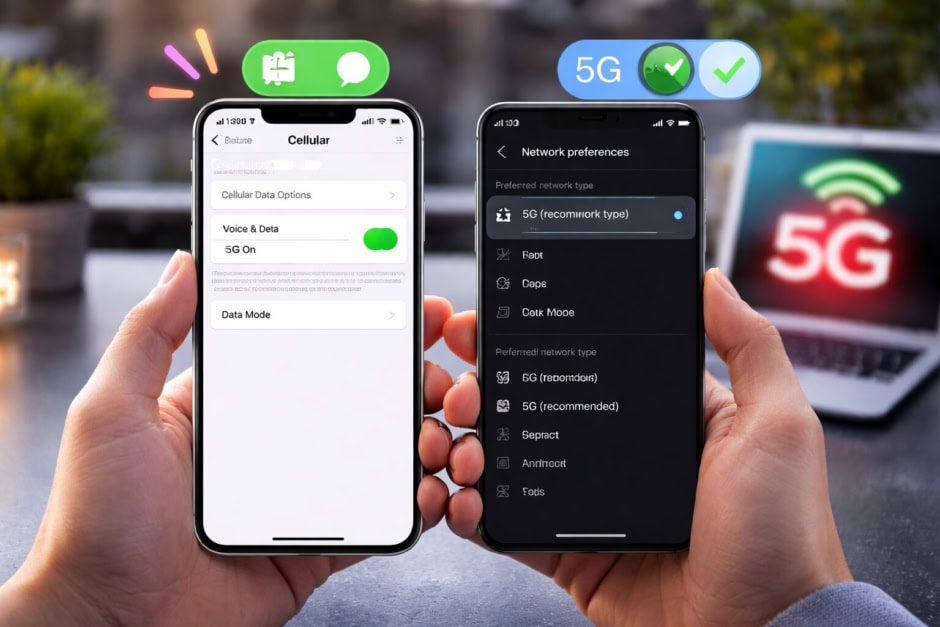
As 5G networks continue to roll out across major cities, more users are upgrading to compatible devices. Faster speeds, lower latency, and better reliability are now key selling points for modern smartphones and tablets. However, even if a device supports 5G, the feature is not always active by default.
In many cases, users need to manually adjust a few settings to unlock 5G connectivity. The process is simple and takes less than a minute, but it differs slightly between iOS and Android devices. Below is a step-by-step guide to help users enable 5G across popular smartphones and tablets.
How to Enable 5G on iPhone (iOS)
To access the fastest mobile connection, users must first ensure they are within a 5G coverage area. On an Apple iPhone Air, the setup can be completed in a few quick steps:
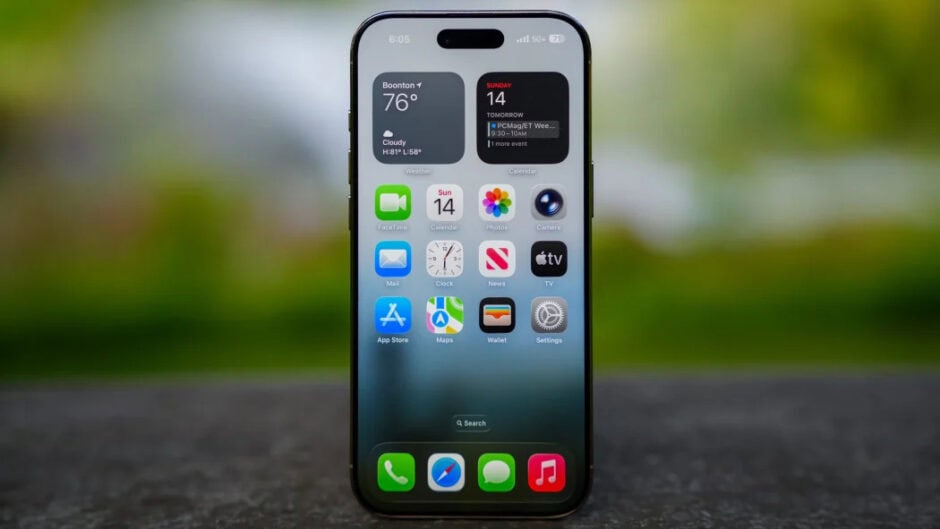
- Step 1: Go to the Home screen and open Settings
- Step 2: Scroll down and select “Cellular.”
- Step 3: Tap on Cellular Data Options
- Step 4: Select Voice & Data
- Step 5: Choose 5G Auto
Once completed, the device is configured for 5G networks. Users can then return to the Home screen.
How to Enable 5G on iPad (iOS)
The process for tablets is very similar, although menu placement may vary slightly. On an Apple iPad Air 13-inch (M4), follow these steps:
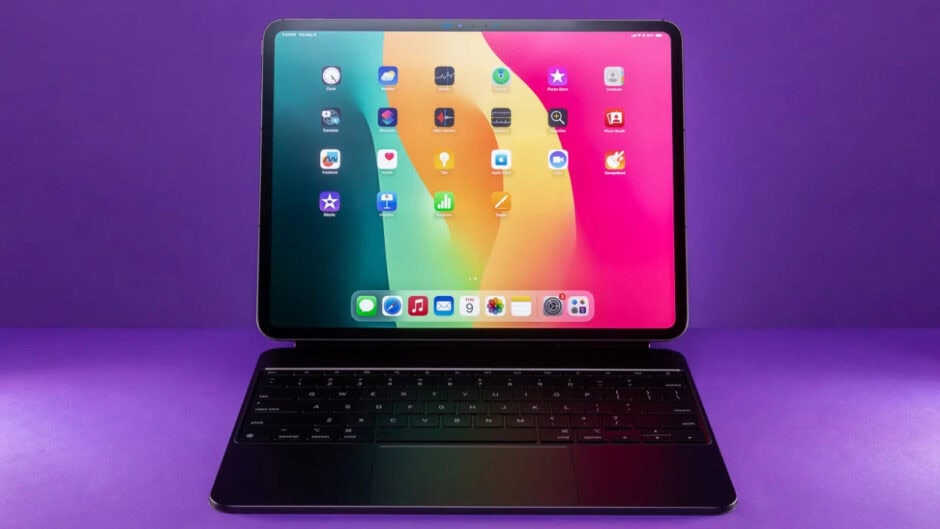
- Step 1: Go to the Home screen and open Settings
- Step 2: Scroll the left menu and select “Cellular Data.”
- Step 3: Tap Cellular Data Options
- Step 4: Choose Data
- Step 5: Select 5G Auto
After these steps, the iPad will support 5G connectivity. Users can return to the Home screen.
How to Enable 5G on Android Phones
Android devices may have slightly different layouts depending on the brand. However, the overall process remains consistent. On a Samsung Galaxy S25+, users can enable 5G as follows:
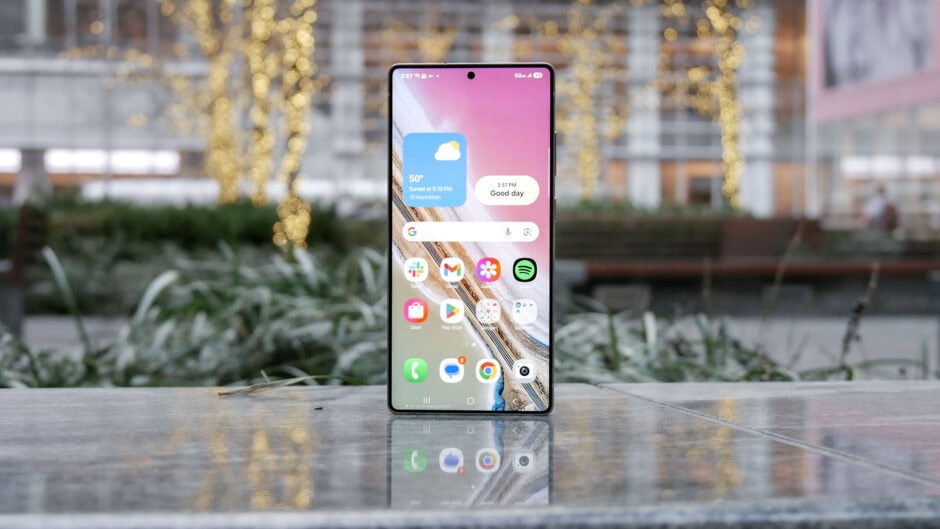
- Step 1: From the Home screen, swipe up to open the menu
- Step 2: Open Settings
- Step 3: Scroll down and tap Connections
- Step 4: Select Mobile networks
- Step 5: Turn on “Allow 5G service.”
Once enabled, the phone will connect to available 5G networks automatically.
How to Enable 5G on Android Tablets
Android tablets follow the same approach as smartphones. On a Samsung Galaxy Tab A11+ 5G, users can activate 5G using these steps:
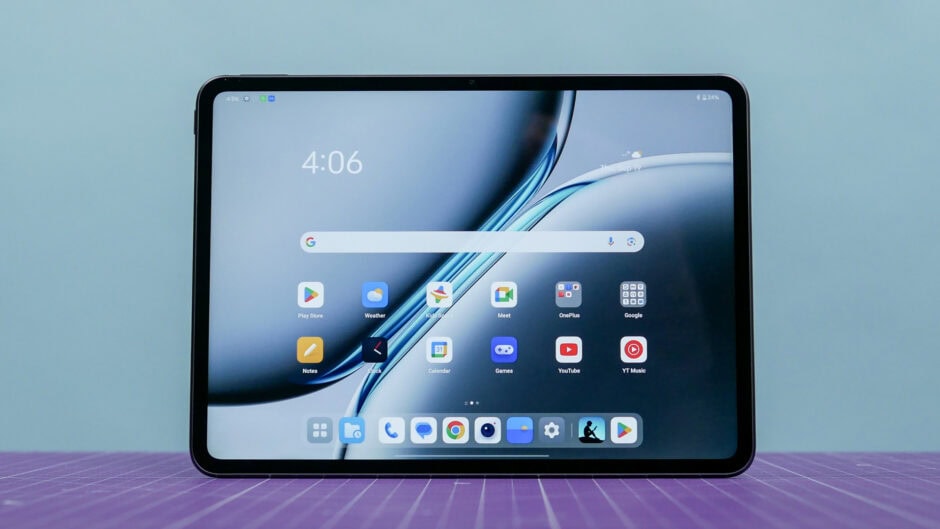
- Step 1: Go to the Home screen and swipe up to open the menu
- Step 2: Open Settings
- Step 3: Scroll through the left menu and select Connections
- Step 4: Tap “Mobile networks.”
- Step 5: Turn on “Allow 5G service.”
After completing these steps, the tablet is ready for 5G usage. Users can return to the Home screen and continue their tasks.
As 5G adoption grows, enabling the feature ensures users get the best performance from their devices. A few quick changes can unlock faster speeds and a smoother mobile experience.