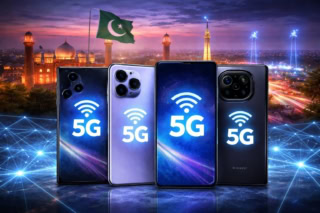
Pakistan is moving closer to launching 5G services. Reports suggest that major cities could see 5G coverage around Eid al-Fitr. As excitement builds, one important question stands out: will your phone actually support 5G?
Many users assume 5G will work automatically. That is not always true. You need a compatible device that supports the correct 5G bands. Without proper hardware support, your phone cannot connect to the new network.
Most Android brands make things simple. If a device supports 5G, it often says so in the name. For example, the Samsung Galaxy A52s 5G clearly mentions 5G. On the other hand, models like Galaxy A07 4G show they only support 4G.
Still, the name alone does not always tell the full story. Here are clear steps you can follow to confirm 5G support on your device.
Check Phone Settings
First, open your phone’s settings. This is the fastest way to verify network support.
- Go to settings
- Tap Network & Internet or Connections
- Select Mobile Network
- Open Preferred Network Type or Network Mode
If you see options such as
- 5G / 4G / 3G
- 5G Auto
- 5G Only
Then your phone supports 5G.
However, if you only see 4G/LTE or lower options, your device does not support 5G. For Apple users, things are simpler. All iPhones released after the iPhone 11 support 5G. So most newer iPhones are ready for the upgrade.
Check Specifications Online
If you still feel unsure, confirm your device specifications online.
- Go to Settings > About Phone
- Find your model name or number
- Search it on Google, such as “Samsung Galaxy A32 specs.”
Next, visit the official brand website for accurate specifications. You can also check trusted platforms like GSMArena and Techjuice’s own Price Portal, which provides updated smartphone specifications and pricing details. Look under the network section on any of these platforms. If 5G appears there, your phone supports it at the hardware level.
Use an IMEI compatibility check.
Every smartphone comes with a unique IMEI number. You can use this number to confirm whether your device supports the required network bands. To find it, simply dial *#06# on your phone, and the IMEI will appear on the screen. You can also go to Settings and open the About Phone section. Many devices even allow you to search “IMEI” directly inside the settings menu.
Once you have the number, enter it on a service like IMEI Info. This step is important because some phones include 5G hardware but do not support the specific frequency bands used by your local carrier. As a result, the phone may be 5G-ready on paper but still fail to connect to the network in Pakistan.
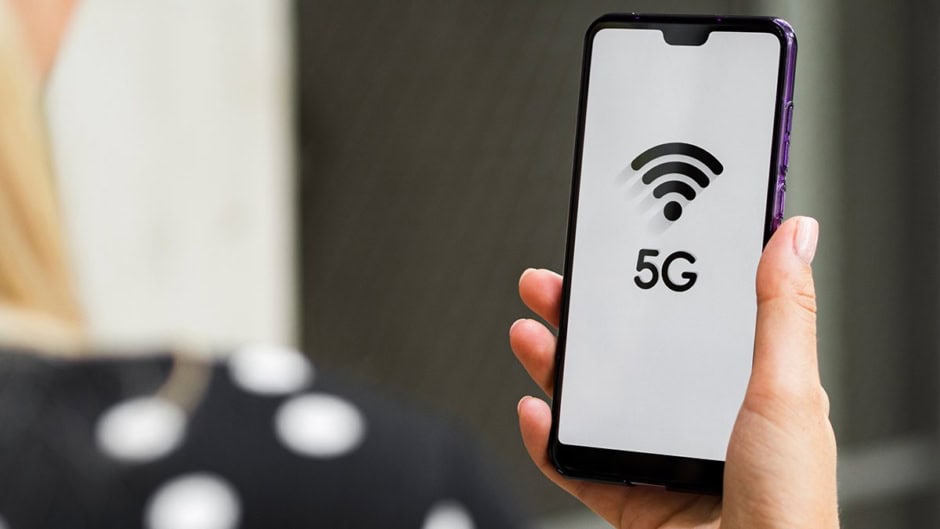
Another simple way to check is by looking at your phone’s status bar. If you are inside a 5G coverage area, your device may display a 5G symbol near the signal indicator. Phones such as the Vivo V60 often show this icon even when mobile data is turned off.
When the 5G symbol appears, it usually means your phone is connected to a 5G network. However, if you do not see the icon, it does not automatically mean your device is incompatible. There may be no 5G coverage in your area yet. In some cases, 5G may be disabled in your settings. Network restrictions from your carrier can also prevent the icon from appearing.
Update Your Phone Software
Finally, check for software updates. Sometimes manufacturers enable 5G support through updates.
- Go to Settings > Software Update
- Install the latest version
In rare cases, brands activate 5G later through software updates, depending on network approval.