
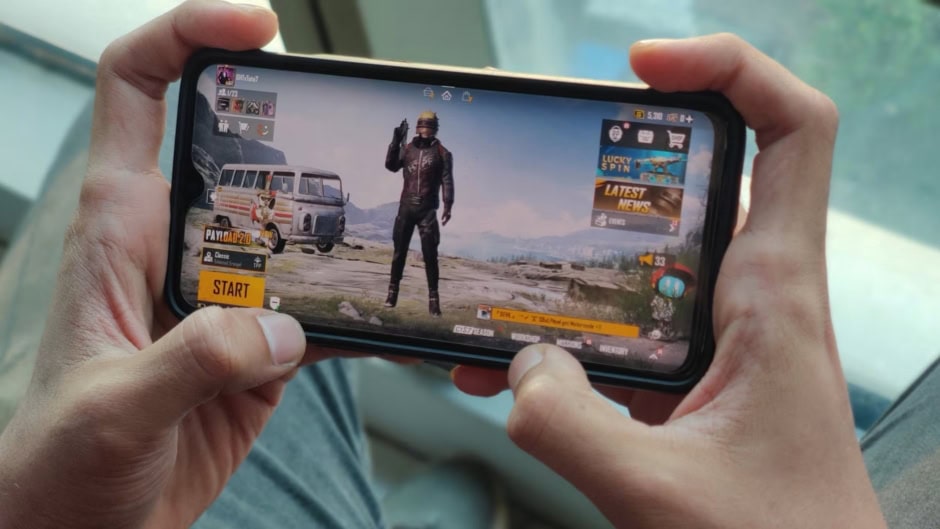
PlayerUnknown’s Battlegrounds (PUBG) helped define the battle royale genre when it exploded onto the scene in 2016. It quickly topped Steam’s charts and became a competitive staple.
Now, PUBG Mobile is redefining gaming once more. They officially added support for ultra-smooth 144 FPS, but only for select devices for now. Which is a dream come true for competitive gamers seeking pixel-perfect reaction times and silky gameplay.
The new 144 Hz mode delivers lightning-fast visuals and ultra-responsive controls, giving players a serious edge in high-stakes firefights. The update rolled out today alongside a list of compatible devices like the Redmi K70 Pro and Black Shark 5 Pro, promising buttery-smooth play for users lucky enough to own them.
Why PUBG Mobile Needed 144+ HZ
In a game as intense as PUBG, every millisecond counts. While finding high-tier loot or spotting enemies early remains critical, upgrading your hardware to run PUBG at 144 FPS or more can give you a serious edge. Here’s why:
-
Lower System Latency: The time between your input (mouse movement or keystroke) and the response on screen is drastically reduced.
-
Smoother Animations: More frames per second means smaller gaps between each movement, making enemy actions appear smoother and easier to track.
-
Improved Aiming: With smoother visuals and reduced delay, your aim gets sharper, particularly during fast-paced combat.
PUBG is notoriously demanding due to large open maps, detailed environments, pop culture crossovers, and the presence of up to 100 players per match. To maintain a consistent 144 FPS, PUBG Corp recommends at least a GeForce RTX 2060 SUPER.
How To Set PUBG Mobile on 144 FPS
Want to push your rig to its full potential? Here are some pro-level steps:
-
Set Resolution to 1920×1080 and make sure your monitor is running at its max refresh rate.
-
Adjust Render Scale to 90.
-
Fine-Tune Graphics Settings to maximize performance:
-
Turn off or lower shadows, effects, and foliage.
-
Reduce post-processing and view distance.
-
-
Sharpen Visuals via NVIDIA Control Panel:
-
Open the control panel > Manage 3D Settings > Program Settings.
-
Select PUBG and enable image sharpening.
-
-
Boost FPS by optimizing your system:
-
Close background apps, kill unnecessary services, and consider overclocking your CPU, RAM, and GPU.
-
PUBG’s creators and GPU vendors have found that players do better when the game runs at a high frame rate. Playing at 144+ FPS makes you better at reacting, aiming, and staying alive longer, which will make a great deal of difference, especially in competitive environments.